Managing Network Security Groups
This guide shows how to create and attach an Azure Network Security Group (NSG) to your AKS cluster's virtual network subnet. NSGs let you control inbound and outbound traffic at the network layer — useful for blocking access to private IP ranges outside your cluster while preserving internal cluster communication and DNS resolution.
Overview
The setup involves:
- Identifying your AKS cluster's virtual network and subnet
- Creating a Network Security Group
- Adding rules in the correct priority order (allow exceptions first, then deny)
- Associating the NSG with the AKS subnet
- Verifying traffic flows as expected
Prerequisites
- Access to the Azure subscription containing your AKS cluster
- The cluster's resource group name and AKS cluster name
- For CLI: Azure CLI installed and logged in (
az login) - For Portal: Access to the Azure Portal
NSG changes take effect immediately and can disrupt running workloads. Always test on a development cluster before applying to staging or production.
Each AKS cluster has an AKS-managed NSG (aks-agentpool-*-nsg) attached to the node NICs in the MC_* resource group. Do not modify that NSG. It is managed by AKS and changes will be overwritten or cause unpredictable behavior. This guide only covers creating and attaching a custom NSG to the AKS VNet subnet.
Rule Design Pattern: Block Private Network Egress
A common use case is blocking outbound traffic to RFC 1918 private IP ranges (other VNets, on-premises networks via peering/VPN) while keeping cluster-internal traffic working. The rule ordering is:
| Priority | Name | Direction | Access | Purpose |
|---|---|---|---|---|
| 100+ | allow-dns-* | Outbound | Allow | DNS resolution to specific resolvers |
| 4000 | allow-self | Outbound | Allow | Intra-VNet traffic (node-to-node, node-to-pod) |
| 4001 | block-rfc-1918 | Outbound | Deny | Block all other private IP ranges |
NSG rules are evaluated by priority (lowest number first). Allow exceptions must have lower priority numbers than the deny rule so critical traffic isn't blocked.
The priority numbers above are examples. Choose priorities that fit your overall NSG design. Azure NSG priorities range from 100 to 4096 — leave gaps between rules (e.g., increments of 10 or 100) so you have room to insert new rules later for other purposes without renumbering existing ones.
The allow-self rule is required for cluster operations and must have a lower priority number than block-rfc-1918, and should be the highest-numbered (last-evaluated) allow rule that still needs to bypass that deny. This ensures intra-VNet traffic is allowed right before all other private IP traffic is denied. Without this rule, the RFC 1918 deny will block node-to-node communication, pod scheduling, service routing, DNS resolution within the cluster, and AKS control plane operations. Your cluster will stop functioning.
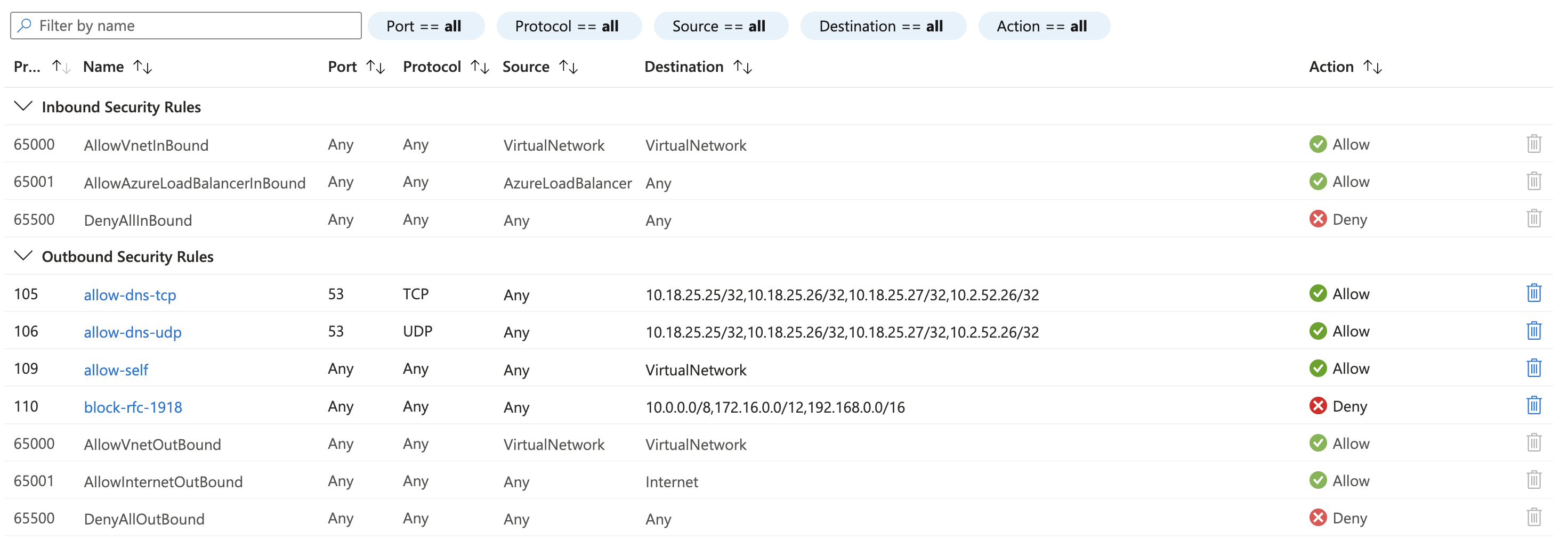
Here's what the completed ruleset looks like in the Azure Portal, with both custom and default rules visible:
- By Hand in the Portal
- Using the CLI
Step 1: Find the AKS Virtual Network
- Navigate to the Azure Portal
- Go to Kubernetes services and select your AKS cluster
- In the left menu, click Properties
- Under Infrastructure resource group, note the resource group name
- Click Networking in the left menu — note the Virtual network and Subnet names
Step 2: Create the Network Security Group
- In the portal search bar, type Network security groups and select the service
- Click + Create
- Fill in:
- Subscription: Select the subscription containing your AKS cluster
- Resource group: Use the same resource group as your AKS cluster (not the
MC_*infrastructure group) - Name: A generic name scoped to the cluster (e.g.,
<cluster-name>-nsg) - Region: Same region as your AKS cluster
- Click Review + create, then Create
A subnet can only have one NSG associated with it, so the NSG will contain rules for multiple purposes over time. Name it after the cluster or environment it protects rather than a specific use case — for example, <cluster-name>-nsg or <environment>-subnet-nsg. Avoid naming it after a single rule set (e.g., block-private-egress) since it will grow to serve broader needs.
Step 3: Add Security Rules
Open your newly created NSG, then click Outbound security rules in the left menu. Add each rule by clicking + Add:
Rule 1: allow-dns-tcp
| Priority | Name | Source | Source Ports | Destination | Dest IP/CIDR | Dest Ports | Protocol | Action |
|---|---|---|---|---|---|---|---|---|
| 100 | allow-dns-tcp | Any | * | IP Addresses | Your DNS server IPs | 53 | TCP | Allow |
To find your cluster's DNS resolvers, inspect the resolv.conf on a running pod:
kubectl exec -it <pod-name> -- cat /etc/resolv.conf
Rule 2: allow-dns-udp
| Priority | Name | Source | Source Ports | Destination | Dest IP/CIDR | Dest Ports | Protocol | Action |
|---|---|---|---|---|---|---|---|---|
| 110 | allow-dns-udp | Any | * | IP Addresses | Your DNS server IPs | 53 | UDP | Allow |
Rule 3: allow-self
This rule is required for cluster operations and must have a lower priority number than the deny rule, and should be the last allow rule that needs to bypass it. Without it, your cluster will stop functioning.
| Priority | Name | Source | Source Ports | Destination | Dest IP/CIDR | Dest Ports | Protocol | Action |
|---|---|---|---|---|---|---|---|---|
| 4000 | allow-self | Any | * | VirtualNetwork | — | * | Any | Allow |
Rule 4: block-rfc-1918
| Priority | Name | Source | Source Ports | Destination | Dest IP/CIDR | Dest Ports | Protocol | Action |
|---|---|---|---|---|---|---|---|---|
| 4001 | block-rfc-1918 | Any | * | IP Addresses | 10.0.0.0/8, 172.16.0.0/12, 192.168.0.0/16 | * | Any | Deny |
After adding all rules, your outbound rules should look like this:
Step 4: Associate the NSG with the AKS Subnet
- In the portal, navigate to Virtual networks and select your AKS VNet
- Click Subnets in the left menu
- Click on your AKS subnet
- In the Network security group dropdown, select the NSG you created
- Click Save
If your cluster has multiple subnets (e.g., a secondary subnet for additional node pools), repeat this for each subnet that should be protected.
Step 1: Identify the AKS Virtual Network and Subnet
Find the virtual network and subnet your AKS nodes are connected to:
az aks show \
  --name <cluster-name> \
  --resource-group <resource-group> \
  --subscription <subscription> \
  --query "agentPoolProfiles[].{name:name, subnetId:vnetSubnetId}" \
  -o table
The subnetId contains the full resource path. Extract the VNet and subnet names:
# Example output:
# /subscriptions/.../resourceGroups/my-rg/providers/Microsoft.Network/virtualNetworks/my-vnet/subnets/my-subnet
Confirm the VNet address space and subnet CIDR:
az network vnet show \
  --name <vnet-name> \
  --resource-group <resource-group> \
  --subscription <subscription> \
  --query "{addressSpace:addressSpace.addressPrefixes, subnets:subnets[].{name:name, cidr:addressPrefix}}" \
  -o table
Step 2: Create the Network Security Group
Create an NSG in the same resource group and region as your AKS cluster:
az network nsg create \
  --name <nsg-name> \
  --resource-group <resource-group> \
  --subscription <subscription> \
  --location <region>
A subnet can only have one NSG associated with it, so the NSG will contain rules for multiple purposes over time. Name it after the cluster or environment it protects rather than a specific use case — for example, <cluster-name>-nsg or <environment>-subnet-nsg. Avoid naming it after a single rule set (e.g., block-private-egress) since it will grow to serve broader needs.
Step 3: Add Security Rules
Rule 1: allow-dns-tcp (Priority 100)
If your cluster uses internal DNS resolvers (e.g., corporate DNS reachable via VNet peering), allow traffic to them before the deny rule. You need both TCP and UDP on port 53:
az network nsg rule create \
  --nsg-name <nsg-name> \
  --resource-group <resource-group> \
  --subscription <subscription> \
  --name allow-dns-tcp \
  --priority 100 \
  --direction Outbound \
  --access Allow \
  --protocol TCP \
  --destination-port-ranges 53 \
  --destination-address-prefixes <dns-ip-1>/32 <dns-ip-2>/32 \
  --source-address-prefix "*" \
  --source-port-ranges "*"
Rule 2: allow-dns-udp (Priority 110)
az network nsg rule create \
  --nsg-name <nsg-name> \
  --resource-group <resource-group> \
  --subscription <subscription> \
  --name allow-dns-udp \
  --priority 110 \
  --direction Outbound \
  --access Allow \
  --protocol UDP \
  --destination-port-ranges 53 \
  --destination-address-prefixes <dns-ip-1>/32 <dns-ip-2>/32 \
  --source-address-prefix "*" \
  --source-port-ranges "*"
To find your cluster's DNS resolvers, check your VNet's custom DNS settings or inspect the resolv.conf on a running pod:
kubectl exec -it <pod-name> -- cat /etc/resolv.conf
Rule 3: allow-self (Priority 4000)
This rule is required for cluster operations, must have a lower priority number than the deny rule, and should be the last allow rule that needs to bypass it. Without it, your cluster will stop functioning.
Allow all traffic within the virtual network. This preserves node-to-node, node-to-pod, and pod-to-service communication:
az network nsg rule create \
  --nsg-name <nsg-name> \
  --resource-group <resource-group> \
  --subscription <subscription> \
  --name allow-self \
  --priority 4000 \
  --direction Outbound \
  --access Allow \
  --protocol "*" \
  --destination-port-ranges "*" \
  --destination-address-prefix VirtualNetwork \
  --source-address-prefix "*" \
  --source-port-ranges "*"
Rule 4: block-rfc-1918 (Priority 4001)
Block all outbound traffic to RFC 1918 private IP ranges. This catches traffic destined for peered VNets, on-premises networks, or any other private infrastructure not explicitly allowed above:
az network nsg rule create \
  --nsg-name <nsg-name> \
  --resource-group <resource-group> \
  --subscription <subscription> \
  --name block-rfc-1918 \
  --priority 4001 \
  --direction Outbound \
  --access Deny \
  --protocol "*" \
  --destination-port-ranges "*" \
  --destination-address-prefixes 10.0.0.0/8 172.16.0.0/12 192.168.0.0/16 \
  --source-address-prefix "*" \
  --source-port-ranges "*"
The VirtualNetwork service tag in the allow-self rule matches traffic within your VNet's address space. Because it's evaluated at priority 4000 (before the deny at 4001), intra-VNet traffic is allowed even though it falls within the RFC 1918 ranges. If you set the deny rule to a lower priority number than the allow rules, you will break cluster networking.
After adding all rules, your outbound rules should look like this:
Step 4: Associate the NSG with the AKS Subnet
Attach the NSG to the subnet your AKS nodes use:
az network vnet subnet update \
  --vnet-name <vnet-name> \
  --name <subnet-name> \
  --resource-group <resource-group> \
  --subscription <subscription> \
  --network-security-group <nsg-name>
If your cluster has multiple subnets (e.g., a secondary subnet for additional node pools), repeat this for each subnet that should be protected.
Verify the Configuration
- By Hand in the Portal
- Using the CLI
Check NSG association
- Navigate to Virtual networks > your VNet > Subnets
- Click on your AKS subnet
- Confirm the Network security group field shows your NSG
Review rules
- Navigate to Network security groups and select your NSG
- Click Outbound security rules in the left menu
- Verify all four rules are present with the correct priorities, actions, and destinations
- Click Inbound security rules and confirm only the default rules exist (unless you added custom inbound rules)
Check NSG association
az network vnet subnet show \
  --vnet-name <vnet-name> \
  --name <subnet-name> \
  --resource-group <resource-group> \
  --subscription <subscription> \
  --query "networkSecurityGroup.id" \
  -o tsv
List all custom rules
az network nsg rule list \
  --nsg-name <nsg-name> \
  --resource-group <resource-group> \
  --subscription <subscription> \
  --query "[].{name:name, priority:priority, direction:direction, access:access, protocol:protocol, destPorts:join(', ', destinationPortRanges || [destinationPortRange]), destAddrs:join(', ', destinationAddressPrefixes || [destinationAddressPrefix])}" \
  -o table
Test from a pod
Start a debug pod with networking tools:
kubectl run debug --rm -it --restart=Never --image=nicolaka/netshoot -- bash
Verify DNS still works:
nslookup google.com
Verify internet egress still works:
curl -s --max-time 5 https://ifconfig.me
Verify private network access is blocked by scanning common ports against an IP in a peered VNet. All connections should time out:
for port in 22 23 53 80 443 8080 8443 3306 5432 6379; do
  nc -zv -w 2 <private-ip-in-peered-vnet> $port 2>&1
done
Expected output when the NSG is working — every port times out:
nc: connect to <private-ip-in-peered-vnet> port 22 (tcp) timed out: Operation now in progress
nc: connect to <private-ip-in-peered-vnet> port 23 (tcp) timed out: Operation now in progress
nc: connect to <private-ip-in-peered-vnet> port 53 (tcp) timed out: Operation now in progress
nc: connect to <private-ip-in-peered-vnet> port 80 (tcp) timed out: Operation now in progress
nc: connect to <private-ip-in-peered-vnet> port 443 (tcp) timed out: Operation now in progress
nc: connect to <private-ip-in-peered-vnet> port 8080 (tcp) timed out: Operation now in progress
nc: connect to <private-ip-in-peered-vnet> port 8443 (tcp) timed out: Operation now in progress
nc: connect to <private-ip-in-peered-vnet> port 3306 (tcp) timed out: Operation now in progress
nc: connect to <private-ip-in-peered-vnet> port 5432 (tcp) timed out: Operation now in progress
nc: connect to <private-ip-in-peered-vnet> port 6379 (tcp) timed out: Operation now in progress
If any port returns Connection succeeded or Connection refused instead of timing out, the NSG is not blocking that traffic. Check that the NSG is associated with the correct subnet and that no higher-priority allow rule is matching.
Adding More Allow Exceptions
To permit traffic to specific private IP destinations (e.g., a database in a peered VNet), add an allow rule with a priority lower than the deny rule's priority:
- By Hand in the Portal
- Using the CLI
- Open your NSG in the Azure Portal
- Click Outbound security rules > + Add
- Fill in the rule fields (e.g., allow TCP 5432 to a database IP at priority 120)
- Click Add
az network nsg rule create \
  --nsg-name <nsg-name> \
  --resource-group <resource-group> \
  --subscription <subscription> \
  --name allow-peered-database \
  --priority 120 \
  --direction Outbound \
  --access Allow \
  --protocol TCP \
  --destination-port-ranges 5432 \
  --destination-address-prefixes <database-ip>/32 \
  --source-address-prefix "*" \
  --source-port-ranges "*"
Keep a gap between priority numbers (e.g., 100, 110, 120) so you have room to insert new rules later without renumbering.
Removing the NSG
- By Hand in the Portal
- Using the CLI
Disassociate from subnet
- Navigate to Virtual networks > your VNet > Subnets
- Click on the subnet
- Set Network security group to None
- Click Save
Delete the NSG
- Navigate to Network security groups
- Select your NSG
- Click Delete and confirm
Disassociate from subnet
az network vnet subnet update \
  --vnet-name <vnet-name> \
  --name <subnet-name> \
  --resource-group <resource-group> \
  --subscription <subscription> \
  --network-security-group ""
Delete the NSG
az network nsg delete \
  --name <nsg-name> \
  --resource-group <resource-group> \
  --subscription <subscription>
Troubleshooting
Check effective security rules on a node
Find a node's NIC and inspect the effective rules (combines the custom NSG with the AKS-managed NSG on the node resource group):
# List NICs in the node resource group
az network nic list \
  --resource-group <node-resource-group> \
  --subscription <subscription> \
  --query "[0].name" -o tsv

# View effective rules
az network nic list-effective-nsg \
  --name <nic-name> \
  --resource-group <node-resource-group> \
  --subscription <subscription>
Common issues
| Issue | Cause | Solution |
|---|---|---|
| Pods can't resolve DNS | DNS allow rules missing or wrong IPs | Check resolv.conf in a pod and update DNS rule destinations |
| Node-to-node communication broken | allow-self rule missing or lower priority than deny | Ensure allow-self priority is lower number than block-rfc-1918 |
| Internet egress broken | NSG shouldn't affect internet — check if a deny-all outbound rule was added | Review rules with az network nsg rule list; default rules allow internet egress |
| Pods can still reach blocked IPs | NSG not associated with subnet, or wrong subnet | Verify association with az network vnet subnet show |
| AKS operations failing (upgrades, scaling) | NSG blocking AKS control plane traffic | Add allow rules for AKS API server IPs or use the AzureCloud service tag |
AKS-managed NSG vs. custom NSG
Your AKS cluster has two NSGs. Both are evaluated — traffic must be allowed by both to flow:
- AKS-managed NSG (
aks-agentpool-*-nsg) in the node resource group (MC_*) — managed by AKS, do not modify - Custom NSG (the one from this guide) on the VNet subnet — managed by you