Secret Injection
This example builds on Configuration Management by adding secret injection from a cloud secret store.
What You'll Learn
In this lesson, you'll learn:
- How to inject secrets from cloud secret stores
- Secret format and naming conventions
- How to give a user or group access to a secret (Azure)
- Secret rotation
- Security best practices
What Gets Created
In addition to resources from Configuration Management, the platform creates:
SecretStore- connection to cloud providerExternalSecret- syncs a specific secret from the cloud- Kubernetes
Secret- created by theExternalSecretand automatically mounted by the Platform Application Operator - IAM roles/permissions - automatically configured
What Changed
Added the spec.secrets section:
apiVersion: meta.p6m.dev/v1alpha1
kind: PlatformApplication
metadata:
  name: demo-http-echo
  namespace: demo-http-echo
  labels:
    p6m.dev/app: demo-http-echo
spec:
  config:
    LOG_LEVEL: debug
    HTTP_PORT: "8080"
    ENVIRONMENT: dev
    APP_NAME: demo-http-echo
  secrets:
    - name: super-secret-data  # Must exist in cloud secret store
  deployment:
    image: mendhak/http-https-echo:31
    ports:
      - port: 8080
        protocol: http
    readinessProbe:
      port: 8080
      path: /
  networking:
    ingress:
      enabled: true
      path: /
      gateway: public-open
Create Secret in the Cloud
We have a focused guide for creating secrets in your preferred cloud provider, check it out here.
Give Your Team Access to the Secret (Azure)
On Azure, the platform creates a Key Vault for your application. Add admins to a secret to let a user or group create and rotate that secret in your application's Key Vault.
admins takes Azure object IDs (GUIDs), not email addresses. Each ID can be a user or a group. A group is usually the better choice: when people join or leave the team, you update the group in Azure and leave the application alone.
1. Find the group's object ID
Run this, or copy the Object ID from the group's overview page in the Azure portal:
az ad group show --group "Demo Echo Developers" --query id --output tsv
# 00000000-0000-0000-0000-000000000000
For a single user, use az ad user show --id <user@example.com> --query id --output tsv.
2. Add the ID to the secret
spec:
  secrets:
    - name: super-secret-data
      admins:
        - 00000000-0000-0000-0000-000000000000  # Demo Echo Developers group
After the change syncs, members of the group can create and update super-secret-data in the application's Key Vault, following the cloud secrets guide.
Leave a comment next to each ID that names the user or group. A bare GUID is hard to audit later.
Deploy Steps
- ArgoCD
- kubectl
ArgoCD automatically updates to your PlatformApplication after the Platform Dispatch Action to update your .platform repository is run.
Let's use the Kinds filter to locate our ExternalSecret, Secret, and SecretStore which are the new objects that will be created.
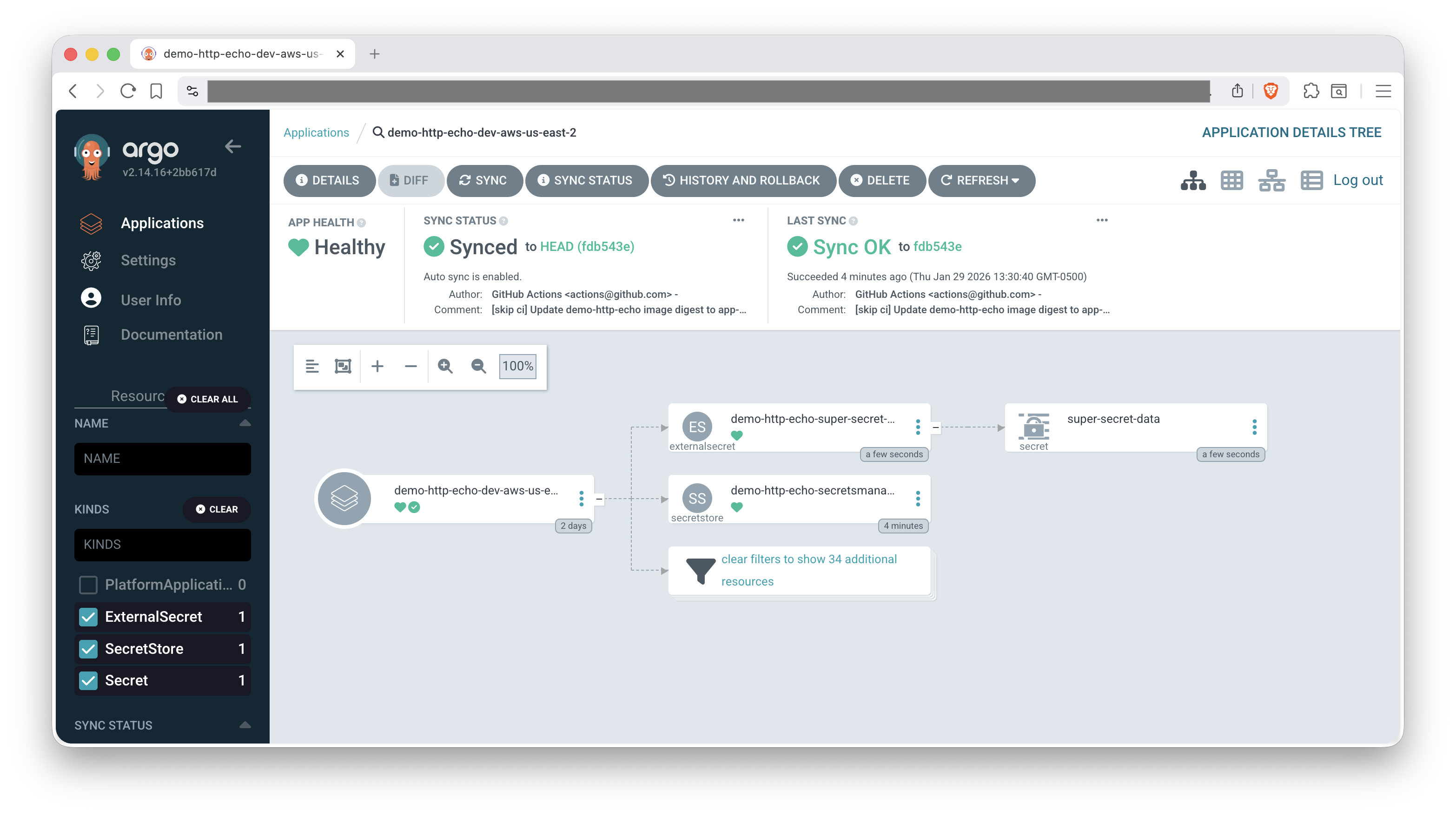
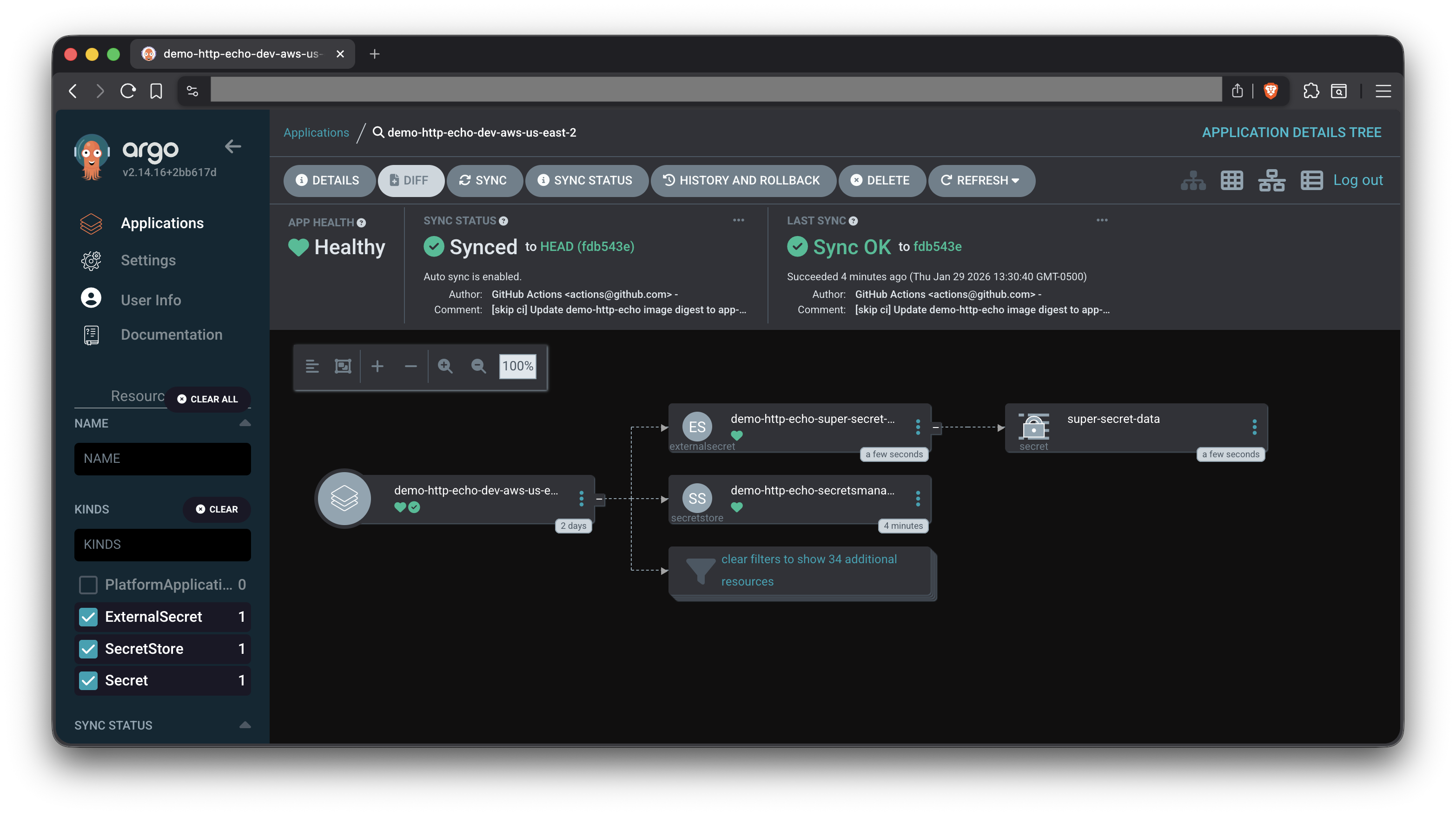
- Check out our ArgoCD Cheat Sheet for tips on interacting with ArgoCD.
- For more information on setting up ArgoCD for Platform Applications, see the ArgoCD Deployment Tutorial.
# Apply the Platform Application
kubectl apply -f application.yaml
Verify the ExternalSecret was created with our name super-secret-data
kubectl get externalsecret -n demo-http-echo
# NAME                               STORE                           REFRESH INTERVAL   STATUS         READY
# demo-http-echo-super-secret-data   demo-http-echo-secretsmanager   1m                 SecretSynced   True
# dockerconfig                       secretsmanager                  1m0s               SecretSynced   True
Check that secret synced successfully (events at the bottom)
kubectl describe externalsecret demo-http-echo-super-secret-data -n demo-http-echo
# Name:         demo-http-echo-super-secret-data
# ...
# Kind:         ExternalSecret
# Metadata:
# ...
# Events:
#   Type    Reason   Age   From              Message
#   ----    ------   ----  ----              -------
#   Normal  Created  10m   external-secrets  Created Secret
How Secrets Work
The platform uses the External Secrets Operator to:
- Fetch secrets from your cloud secret store
- Create Kubernetes Secrets with the secret data
- Inject as environment variables into your pods
Secret Format Requirements
Secrets must be stored as key-value pairs (JSON object):
{
  "API_KEY": "abc123",
  "DATABASE_PASSWORD": "xyz789",
  "OAUTH_CLIENT_SECRET": "secret456"
}
Keys become environment variable names (use UPPERCASE_WITH_UNDERSCORES).
Want to dive deeper? See Secret Injection - Details for cloud setup procedures, verification steps, and security best practices.
Next Steps
- Persistent Storage - Mount PVCs, ephemeral volumes, and ConfigMap/Secret files
Troubleshooting
For common issues and solutions, see the Troubleshooting Guide.
Specific sections that may be helpful:
Cleanup
Check out the Cleanup Instructions from the Basic Deployment lesson to remove all resources created in this walkthrough.
Make sure to also delete any secrets created in your cloud secret store to avoid incurring costs.
Related Documentation
- External Secrets Operator - ESO documentation
- AWS Secrets Manager - AWS secret management
- Azure Key Vault - Azure secret management
- Kubernetes Secrets - Understanding Secrets